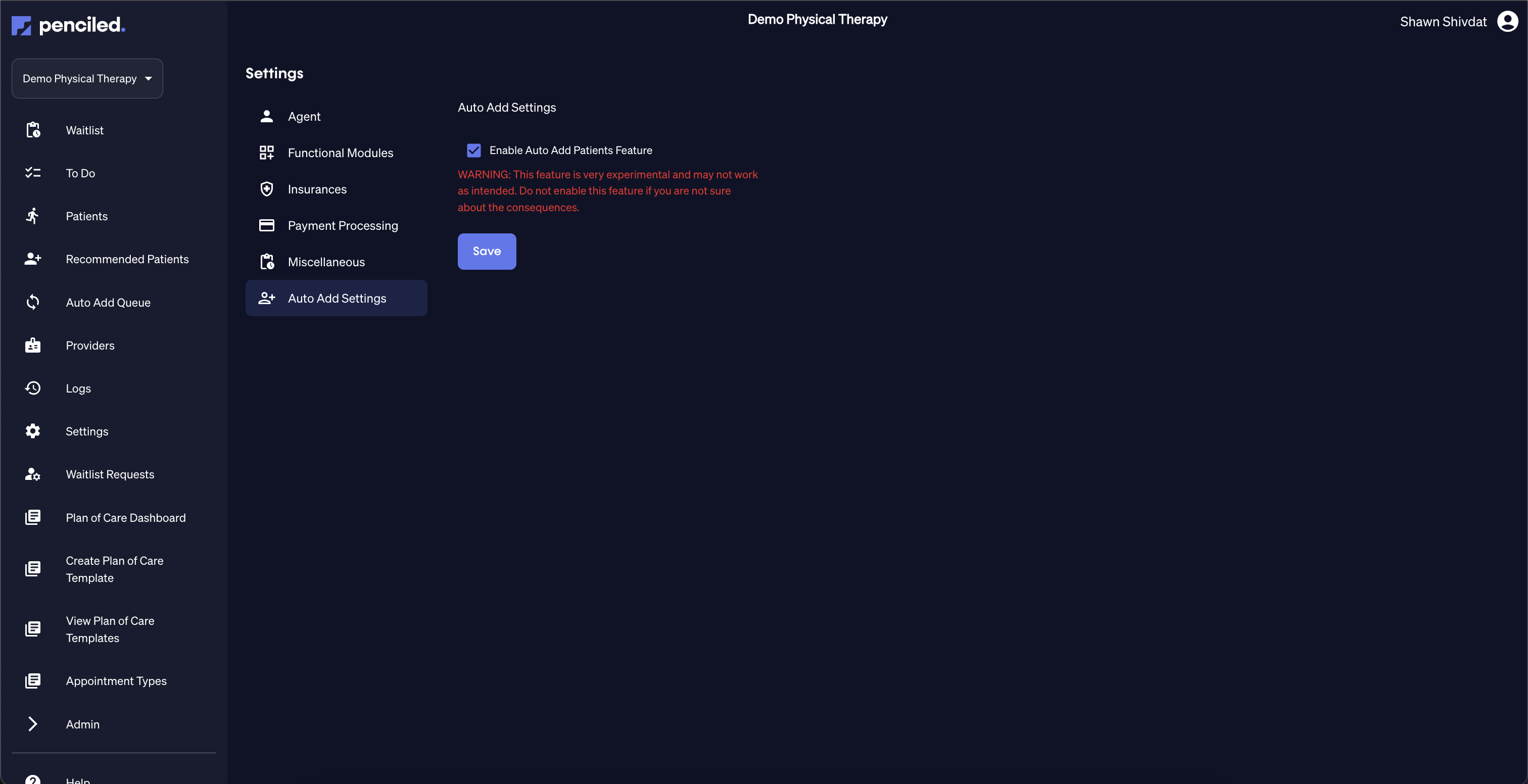
Automatically adding patients to Penciled
Penciled can be configured to automatically add patients from the recommended patients page in order to schedule out their visits. When enabled, any newly-detected active patients found will be added on a regular schedule each morning.
This allows you to turn on Penciled once and let it operate in the background, detecting patients and immediately filling schedules.
Warning: before turning this on
Turning this feature on allows the AI to automatically detect new active patients, add them to Penciled, and reach out to schedule visits accordingly with no human supervision.
Depending on your clinic, certain rules and restrictions to adding patients and self-sechduling may apply.
We advise to take a close look at your Penciled settings before turning on auto-add, and even start by manually adding patients from the recommended patients table if possible.
Types of rulesets to set before turning on auto-add
Provider
Many providers have certain hourly availability preferences or prefer to see a maximum of 1, 2, or 3 patients at the same time. Other providers cannot see certain appointment types like pelvic floor visits or restrict themselves from certain payers.
Providers may also be non-supervising therapists or PTAs, which should not be scheduled into any initial exams and who should be the default provider for follow-ups.
Payers
Certain payers may not allow patients to be double-booked and therefore should be restricted to scheduling only one patient with that payer at a time. Others do not allow the mention of cancellation fees.
Or, your clinic may not factor in the authorization status field in WebPT for certain payers, and you may expect the AI to schedule prescribed appointments regardless of the authorization for certain payers.
Even still, some payers may need to be handled more manually, and you may not wish for the AI to auto-schedule patients with those payers at all.
These are just a few of the settings to think about before turning on auto-add.
Plans of care
Inside of the plan of care, certain appointment types like initial exams or re-exams may need to be restricted to one-on-one scheduling so the AI does not double book a provider who is conducting an initial exam.
Following expiration of a given plan of care, some clinics desire the plan of care in Penciled to continue automatically extending itself according to its frequency even if a recertification has not yet occurred or if a new plan has not been established. Other clinics may expect the AI to schedule out visits according to the frequency of the plan of care but up to the maximum authorization allowed, regardless of the number of visits originally prescribed.
Other considerations
Clinics also have varying preferences on:
- whether to send reminders and require confirmations
- whether to allow the AI to cancel visits in realtime and charge applicable cancellation fees
- whether provider availability should be read using whitespace in the EMR or using predefined available blocks
- whether waitlist messages should be capped for certain patients
- ... many other rules
Before turning on auto-add, it is best to gain a good understanding of the platform, add some patients manually first to test its behavior, and set the rules as desired.
How to turn on auto-add
When you feel comfortable with the platform and would like to maximize the number of scheduled appointments, you can turn on auto-add in the Penciled settings.
The auto-add toggle is located in Penciled settings under Auto Add Settings.